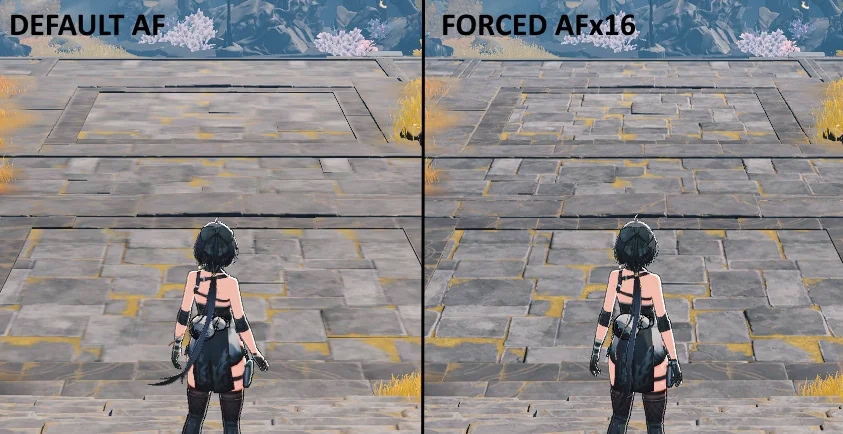
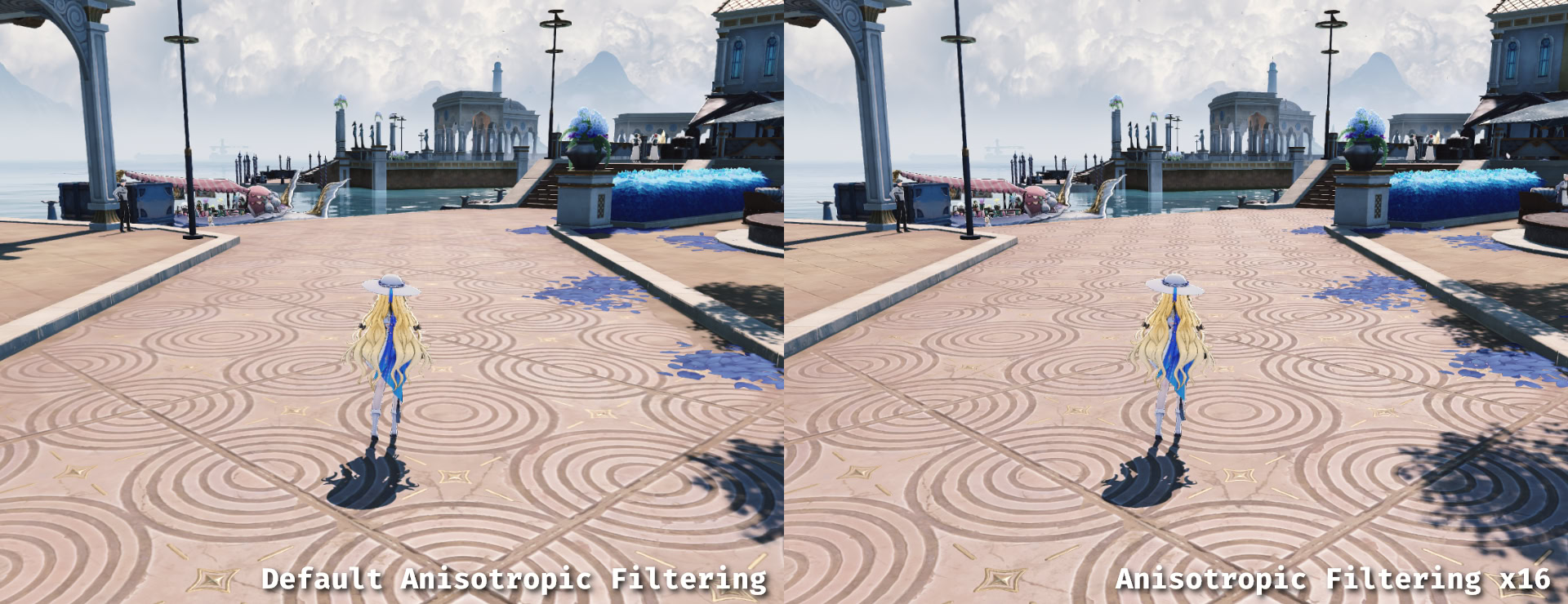
The command Fixed and added into in-game settings in version 3.3.r.MaxAnisotropy doesn't work even when set to 16.
; Enable or disable Kuro Streaming Priority
; 0: Off, 1: Retention Only, 2: Load Only, 3: Both Retention and Load (Default)
; Off can cause Smartprint Cube Reboot textures to load slowly but fixes Aemeath Res Lib Exostrider armor not loading
r.Streaming.UsingKuroStreamingPriority=0
; Adjust object details, lower value = better far object detail
; Using values lower than 0.5 can cause ground texture to flicker
r.StaticMeshLODDistanceScale=0.7
; Set mesh blend quality
; 1 = Low, 2 = Medium, 3 = High, 4 = Epic
r.MeshBlend.Quality=3
; Higher value = more objects rendered and better textures at a distance
; Limit seems to be 1.0, didn't notice any changes using a higher value
wp.Runtime.PlannedLoadingRangeScale=1.0
If textures are still blurry try using High/Ultra High LOD Bias (Lahai Roi / Menghzou uses more VRAM compared to older areas - can cause FPS drops due to hitting the VRAM limit) VRAM usage reduced in version 3.6.
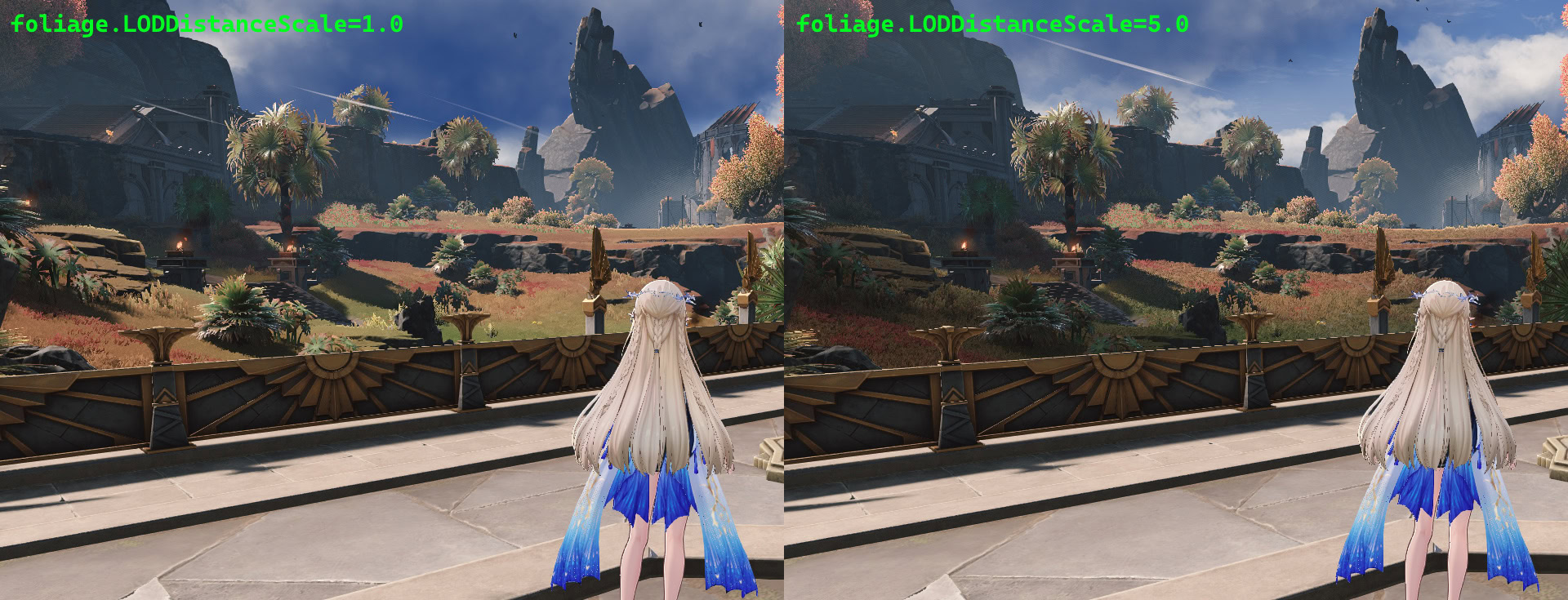
; Default value is 1.0
foliage.LODDistanceScale=2.0
; Set distance before grass is culled
r.Kuro.Foliage.NearCullDistanceMax=9750
r.Kuro.Foliage.MiddleCullDistanceMax=15750
r.Kuro.Foliage.FarCullDistanceMax=22500
r.Kuro.Foliage.GrassCullDistanceMax=22500
r.Kuro.Foliage.Grass3_0CullDistanceMax=30000
Didn't notice much difference when using values above 5 for foliage LOD distance scale.
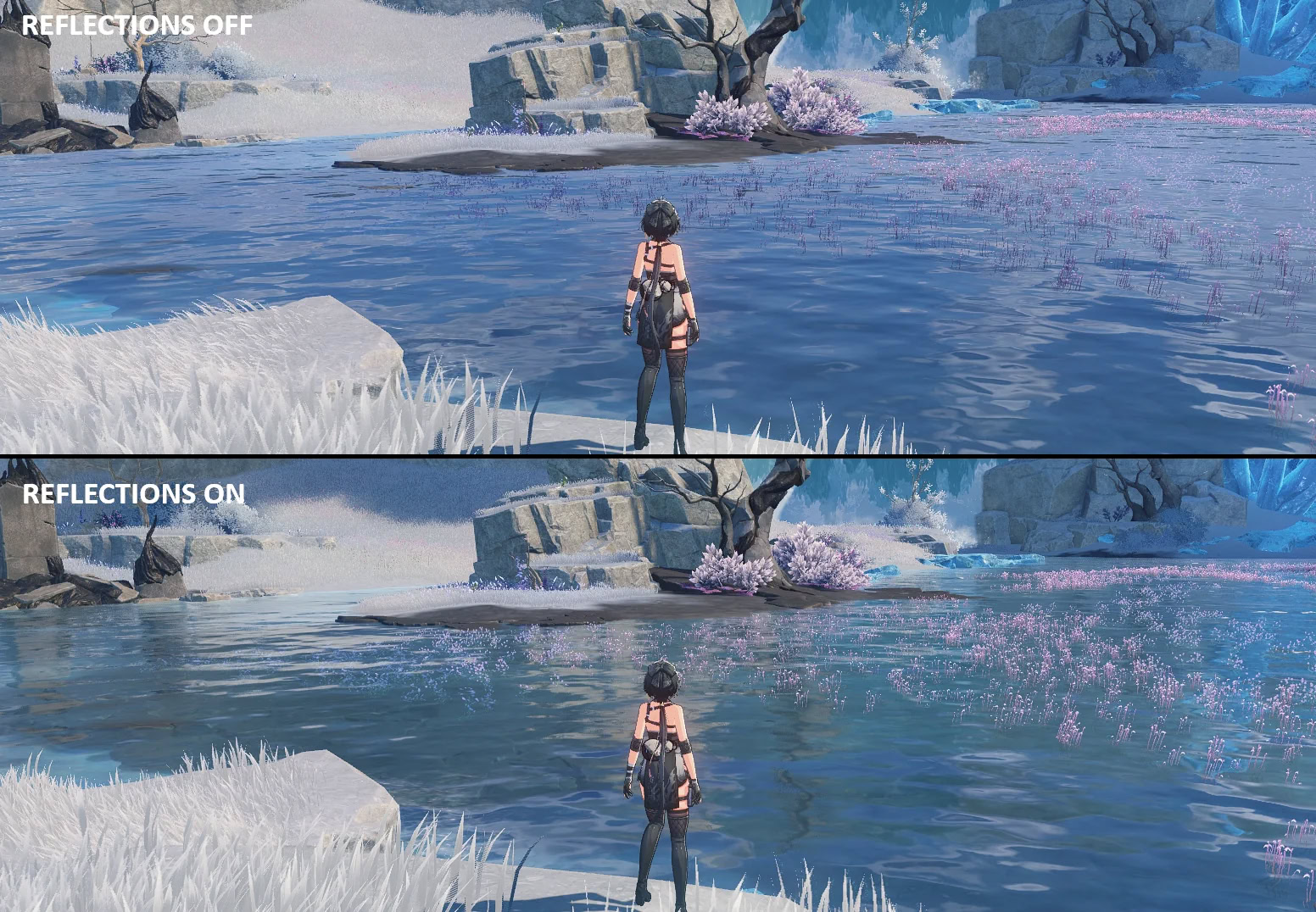
; 0: Off, 1: Low, 2: Medium, 3: High, 4: Very High
; Not included in config anymore as changing the quality doesn't seem to do anything
r.SSR.Quality=3
; 0.0 to 1.0 - Sets roughness level where SSR starts to fade out
; Default value - 0.6
r.SSR.MaxRoughness=1.0
; 0: Use full res scene color, 1: Use half res scene color
r.SSR.HalfResSceneColor=0
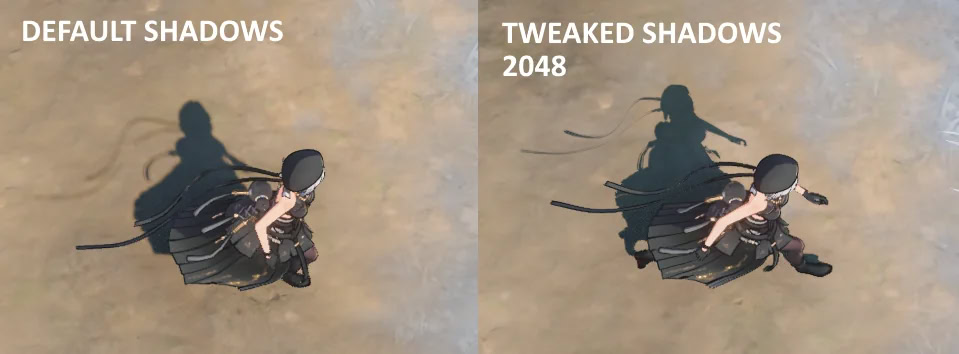
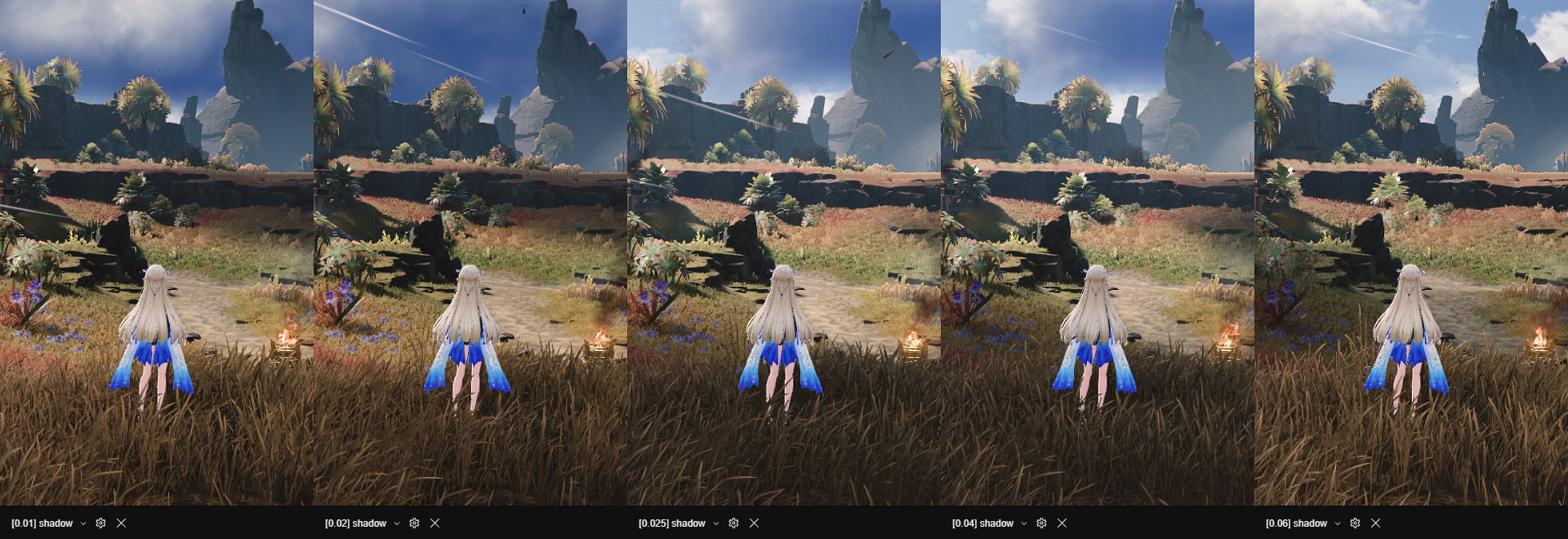
; Lower values increases the amount of shadow
r.Shadow.RadiusThreshold=0.01
; Set shadow resolution, higher costs more FPS
; Character shadow
r.Shadow.PerObjectResolutionMax=1024
r.Shadow.PerObjectResolutionMin=1024
; Enable/disable shadow cache (not included in config)
; Disabling this fixes the low FPS shadows in Lahai Roi and newer areas, but expect 10-20 FPS drop or more and also make certain shadows update too fast
r.Shadow.CacheDirectLightShadow=0
; Enable/disable distance field shadowing
; Default enabled for High Quality/Ultra Quality preset
; 0 = Off, 1 = On
r.DistanceFieldShadowing=1
; 1: Low, 2: Medium, 3: High
r.DFShadowQuality=3
Default values used for per object shadow resolution is low which is the reason why it doesn't look great, setting per object resolution to 512 or 1024 is enough to make character shadows look better than default.
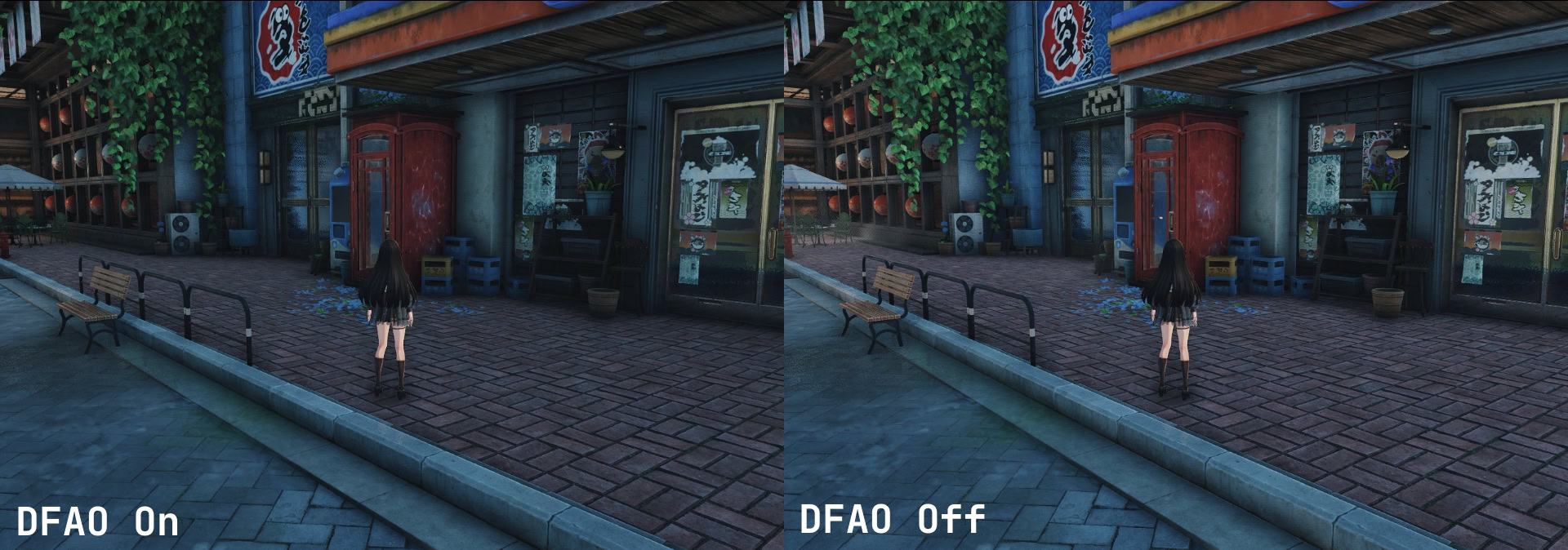
; Version 3.1 added Low/Medium/High for Capsule AO in game settings
Low - Capsule AO, DFAO Off
Medium - DFAO On (High Quality)
High - DFAO On (Very High Quality)
; 1 = Full res DFAO, 2 = Half res DFAO (Default)
r.AODownsampleFactor=2
; Default value is -1 (which sets it to 0.9)
; Higher value increases AO effect
r.AmbientOcclusion.Intensity=0.9
Enabled by default for High Quality and Ultra Quality preset, you can enable it through Engine.ini if you want. Added into in-game settings in version 3.1.
Full image comparison: DFAO Comparison 1 | DFAO Comparison 2
; Enable / disable Screen Space Fog Scattering
; 0 = Off, 1 = On (Default)
r.SSFS=1
; Set Screen Space Fog Scattering resolution
; 1: Full res, 2: Half res, 4: Quarter res
r.SSFS.DownSampleFator=1
; Not included in config
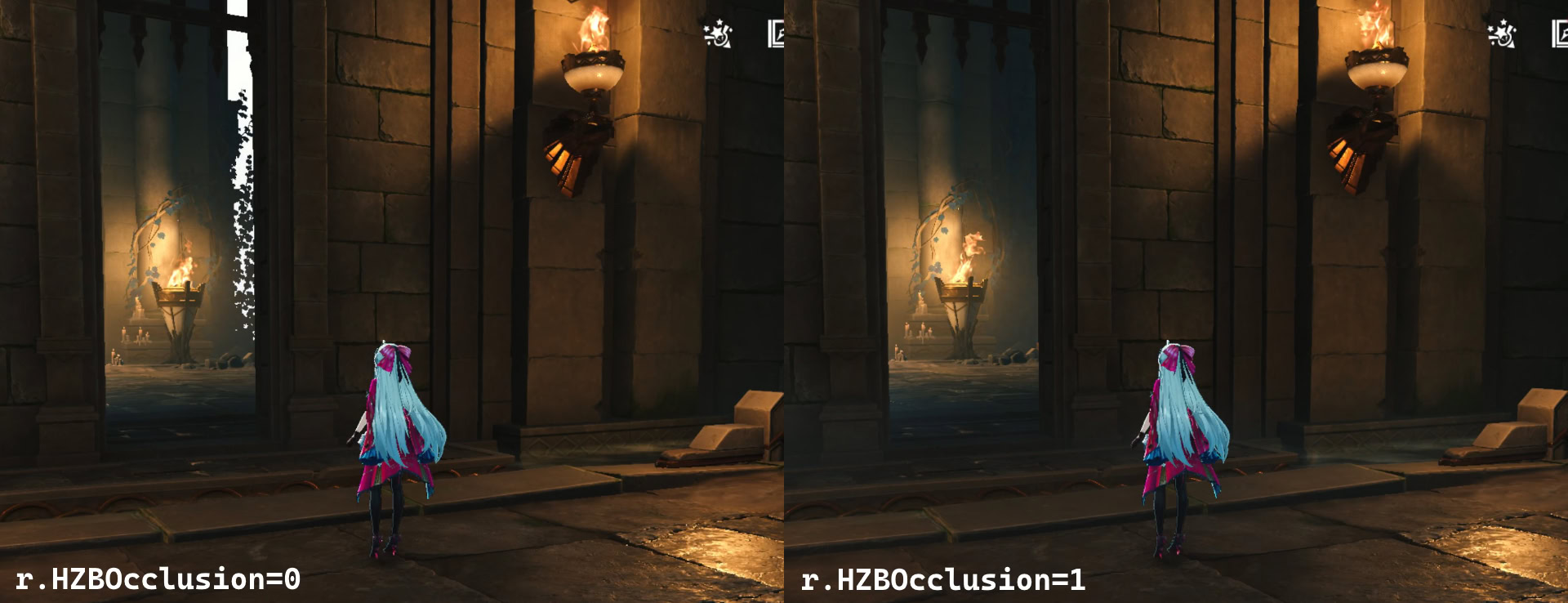
; 0 = Hardware occlusion (Default), 1 = HZB Occlusion
r.HZBOcclusion=1
Game's default hardware occlusion culling is bad especially in Vault Underground / Minos Sewers and certain newer areas. Using HZB Occlusion reduces white spots when turning camera but lowers FPS in some areas.
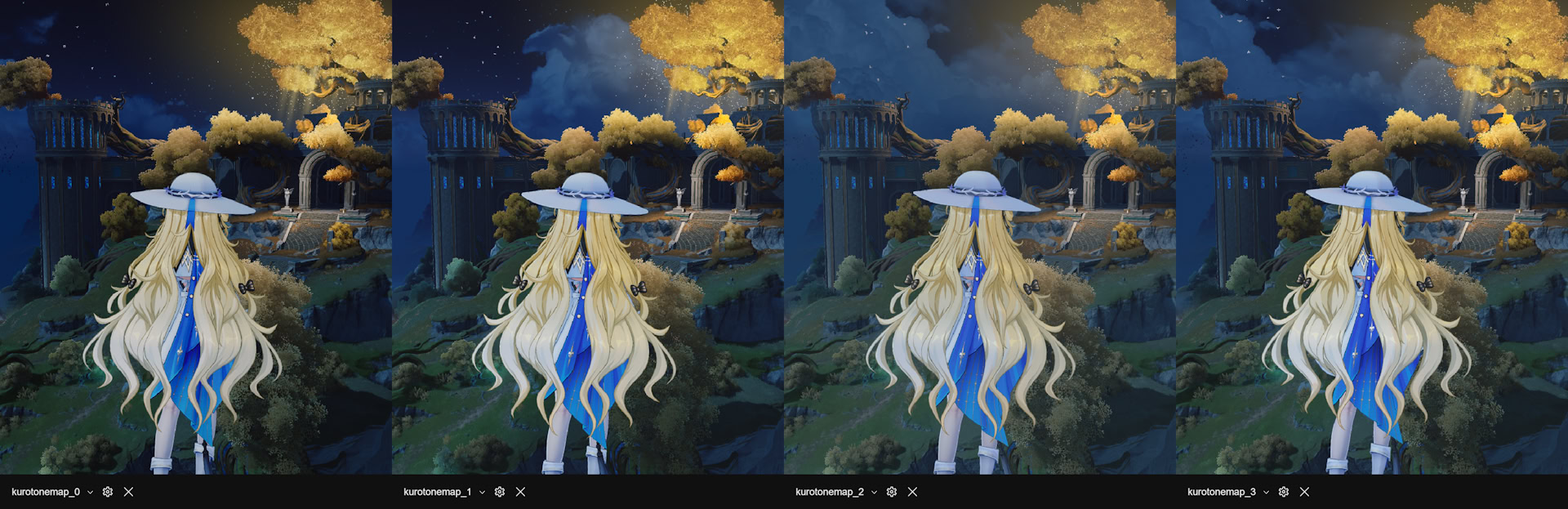
; 0 = Off, 1 = Genshin, 2 = Death Stranding, 3 = Kuro (Default)
r.KuroTonemapping=3
All images in the comparison were taken with default game settings.
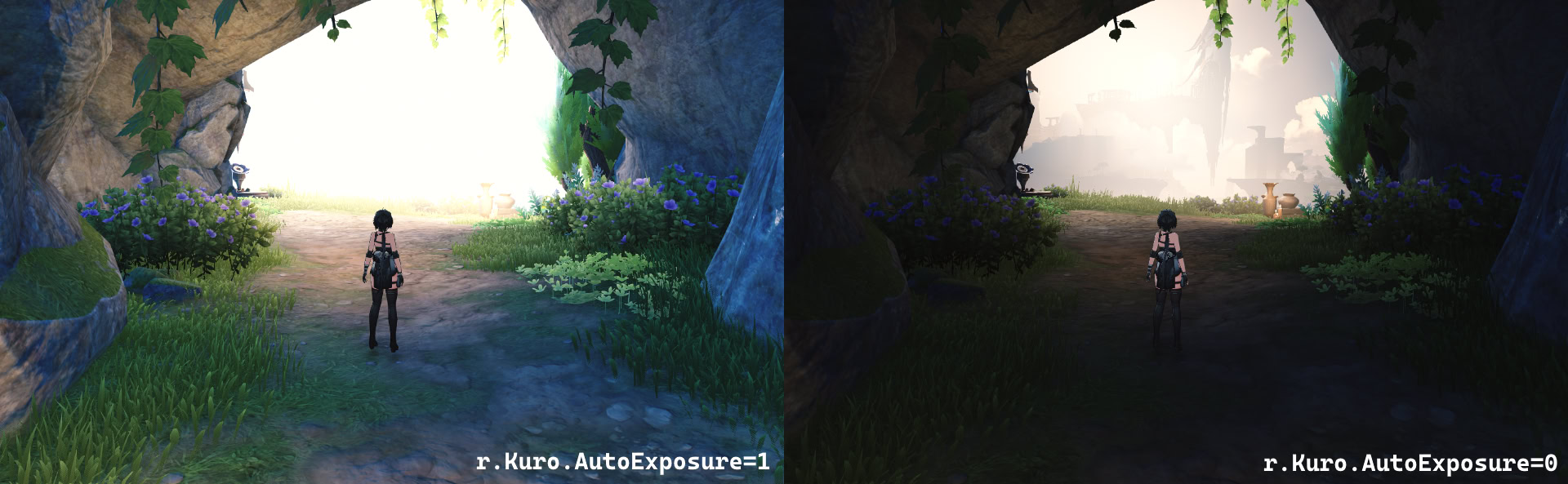
Here's some image comparisons when changing in-game Auto Exposure setting to On / Off.
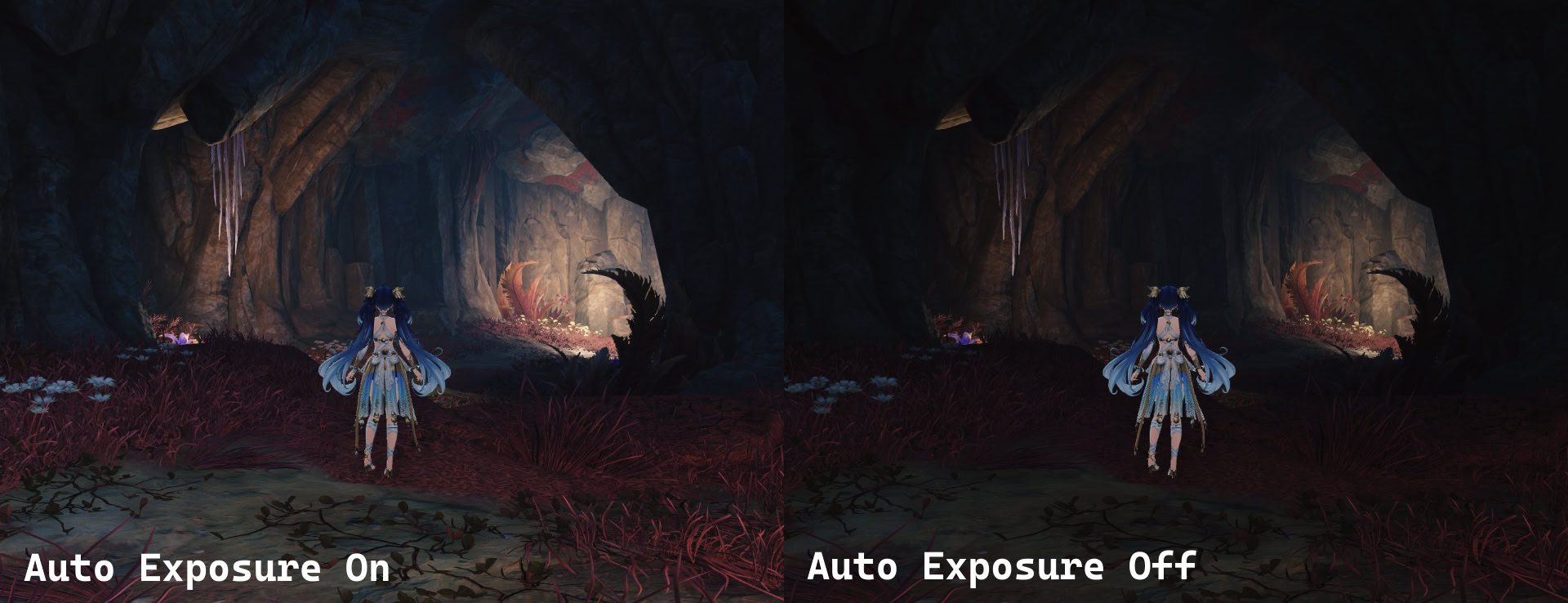
; 0 = Off, 1 = On (Default for Balanced preset and above)
; New bloom used in Lahai-Roi
r.Kuro.KuroEnableFFTBloom=0
r.Kuro.KuroEnableToonFFTBloom=0
; 0 = Off (slightly lower bloom brightness without streak), 1 = On (Default)
r.Kuro.KuroBloomStreak=0
; 0 = Disable Lens Flare, 1 = Enable Lens Flare (Default)
r.EnableLensflareSceneSample=0
; 0 = Disable Depth of Field, 1 = Low, 2 = High (Default), 3 = Very High, 4 = Extremely High
r.DepthOfFieldQuality=0
; 0 = Off (Disable Chromatic Abberation), 1 = On (Default)
r.SceneColorFringeQuality=0
; 0 = Disable, 1 = FilmContrast, 2 = Vignette, 4 = Vignette + Film Grain
; Setting it to 1 disables Film Grain and Vignette (can make certain scenes brighter)
r.Tonemapper.Quality=1
; Animation rate optimization - 0 = Off, 1 = On (Default)
; Disabling fixes low FPS animation for certain things in Jinzhou and Rinascita?, does not work in newer areas
a.URO.Enable=0
; Screen ratio based URO optimization (added in version 3.5) - 0 = Off, 1 = On (Default)
a.URO.EnableScreenRatio=0
; Changes object details, lights and particle effects
; 0 = low, 1 = medium, 2 = high
r.DetailMode=2
; Affects UI quality even at native res
; 3 is best quality, some GPUs have it set to a lower value by default
; Using value above 3 causes parts of UI to glitch
r.Upscale.Quality=3
; Adjust light shaft resolution
; Value from 1 to 8 (default 2), higher value = lower resolution
r.LightShaftDownSampleFactor=1
r.Kuro.KuroTyndallScatteringsDownSampleFactor=1
; Adjust volumetric light quality
; Higher value = lower quality, default value is 4 for both
r.KuroVolumetricLight.ColorMaskDownSampleFactor=1
r.KuroVolumetricLight.DownSampleFactor=1
; Enable water ripples when flying close/casting skill
; 0 = Off, 1 = On (Default)
r.Kuro.InteractionEffect.UseCppWaterEffect=1
; Optimize draw calls for foliage density LOD scale
; 0 = Off (Default), 1 = On
foliage.DensityScaleLOD.DrawCallOptimize=1
; Set height before light turns off / object despawn in flight mode
wp.Runtime.SoraGridBlackListHeight=20000
; Enable/disable Variable Rate Shading
; 0 = Off, 1 = On (Default)
r.VRS.Enable=0
; Default is LRU up till version 3.5
; 0 = Default, 1 = LRU
r.PSO.CacheEvictScheme=1
; Default - 2000, controls size of PSO least recently used cache
; Using a low value (less than 1000) will cause objects / UI to not render properly and flicker
r.PSO.LRUCapacity=2304
; Place the commands in Engine.ini under [SystemSettings]
; Lower values reduce ghosting from characters when near a wall/foliage for RT GI but increase flickering artifacts
; Default - 0.05 (Low & Medium) | 0.03 (High)
r.Lumen.ScreenProbeGather.Temporal.DistanceThreshold=0.03
; Use async compute for reflections, may improve performance for some GPUs
; 0 = Disable (Default), 1 = Enable
r.Lumen.Reflections.AsyncCompute=1
; 0 = Disable, 1 = Enable (Default)
; Turning this off fixes SSR-like problems (e.g. blocky character/object shadows) but some objects do not get reflected anymore
r.Lumen.Reflections.ScreenTraces=0
; Value from 0 to 1 | Default - 0.5
; Global material roughness bias for Lumen Reflections, 1 is fully mirror
r.Lumen.Reflections.SmoothBias=1.0
For the rest of the commands you can find information in AMD / Epic site which can be found in the links below.
All commands listed are placed in Engine.ini under [SystemSettings]
; Set distance before NPC disappears (Default 6000)
; Doesn't work for all NPCs, some have a set distance
r.Kuro.NpcDisappearDistance=20000
; When enabled, blueprint tick is managed by time budget (Default true)
; Turning this off fixes low FPS animation for certain things in Septimont/Lahai-Roi
; Downside is that this disables interactive objects in certain quests, Honami (e.g., umbrella) and Lahai-Roi (e.g., ball)
Kuro.Blueprint.EnableGameBudget=false
; Reflex Mode - 1 = low latency, 2 = low latency with boost
; Does not work for RTX 40/50 series due to Frame Generation but if you need Reflex only you can delete nvngx_dlssg.dll to disable FG when turned on (Don't open game with launcher, it will verify files and redownload)
t.Streamline.Reflex.HandleMaxTickRate=true
t.Streamline.Reflex.Enable=1
t.Streamline.Reflex.Mode=1
r.Streamline.DLSSG.RetainResourcesWhenOff (used to fix FG menu stutter) already enabled by default since version 3.5
To reduce log file size add the text below to Engine.ini but this prevents gacha history URL from being logged which is used for sites like WuWa Tracker.
You can remove it temporarily to import your pulls then add it back.
[Core.Log]
global=none
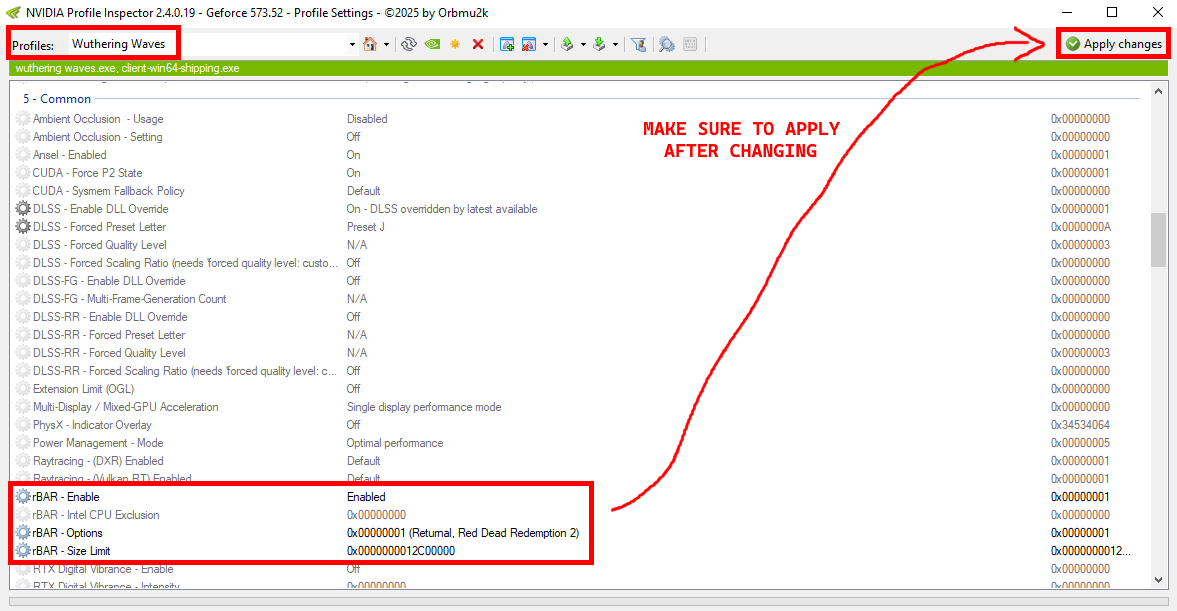
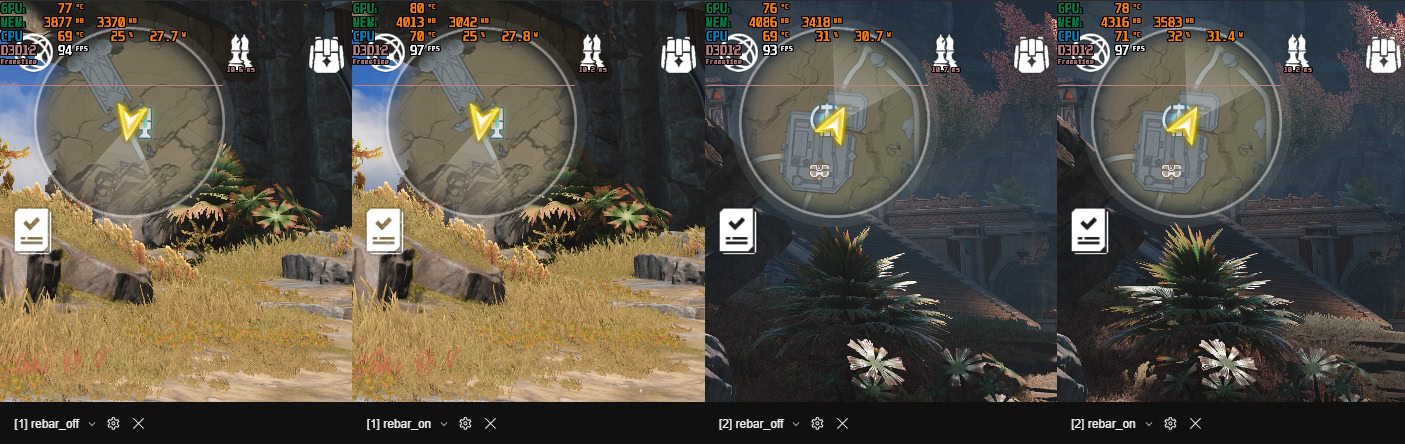
; Using ReBar increases VRAM usage
; Choose either option below for "rBAR - Size Limit", FPS boost is similar
0x000000000C800000 (Returnal, Diablo 4) = 200MB
0x0000000012C00000 (The Riftbreaker) = 300MB
0x0000000040000000 (Red Dead Redemption 2) = 1GB
Forcing ReBar on for NVIDIA GPUs can help boost FPS a bit, currently using the 200MB option for native 1080p on RTX 3060 6GB Laptop. You can do this via NVIDIA Profile Inspector.
Link to download NVIDIA Profile Inspector: https://github.com/Orbmu2k/nvidiaProfileInspector/releases